

In an effort to make accounts more secure many hosts are implementing mandatory 2-factor authentication and encouraging users to share access with delegation instead of sharing login credentials. In this post we’ll run through how to provide delegate access to your GoDaddy account. If you prefer to have professionals manage your hosting setup for you, our Website Design services include secure configuration and ongoing support.
Log into your GoDaddy account
Create a GoDaddy account or log in on the https://www.godaddy.com/. Once logged into your dashboard, click Account Settings at the top left of the page and select Delegate Access (Fig. 1). If you’re managing multiple services or preparing for a future redesign, our guide on website maintenance & DIY tools can help you stay organized and secure.
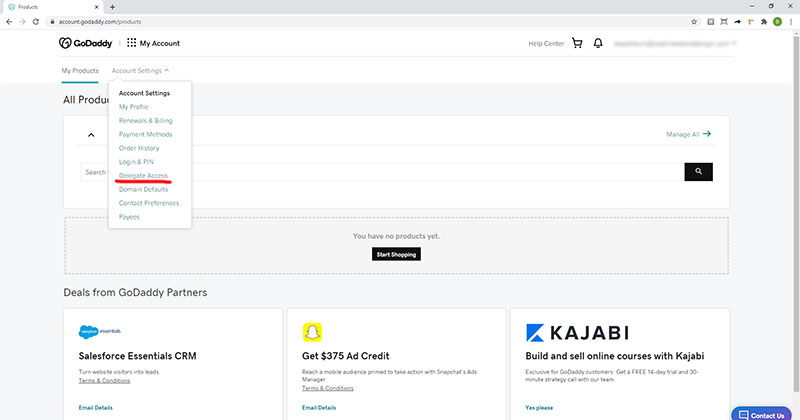
Invite a user
On the Delegate Access page click the Invite to Access button in the right column (Fig. 2). For additional ways to secure your site beyond delegation, see our walkthrough on setting up iThemes Security.
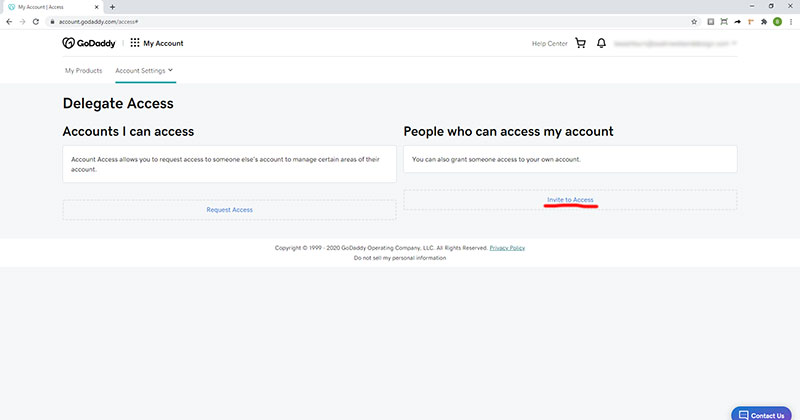
Once you click Invite to Access, a popup will appear. Enter the name and email of the person you want to grant access to. The name can be anything memorable. For the e-mail, if you are granting access to Austin Web and Design, please use [email protected]. Then select the appropriate access level. In most cases, this will be “Products & Domains.” Once the invite gets sent out, the user you invited will need to log into their account and accept it within 48 hours. Then you’re all set! If you’re securing other parts of your site, our guide on setting up HTTPS explains why enabling SSL is essential.
Related Access Guides
If your GoDaddy account connects to other hosting platforms, DNS providers, or Google tools, these guides walk through how to safely grant access without sharing passwords.