

Need to give a web designer, developer, or another trusted person access to your GoDaddy account? GoDaddy delegate access lets them work with the products you authorize without giving them your password, support PIN, or access to your payment information.
Follow the steps below to add a delegate to your GoDaddy account. If you are granting access to Austin Web and Design, use [email protected] when you reach the invitation form.
What is GoDaddy delegate access?
Delegate access is GoDaddy’s secure way to let another person manage selected products in your account. The delegate signs in with their own GoDaddy account, so you do not have to share your login credentials or two-factor authentication codes.
You choose the delegate’s access level and can change or remove their access later. Regardless of the level selected, a delegate cannot view or change your password, support PIN, payment methods, or other secure account credentials.
How to add delegate access to your GoDaddy account
1. Sign in and open Delegate Access
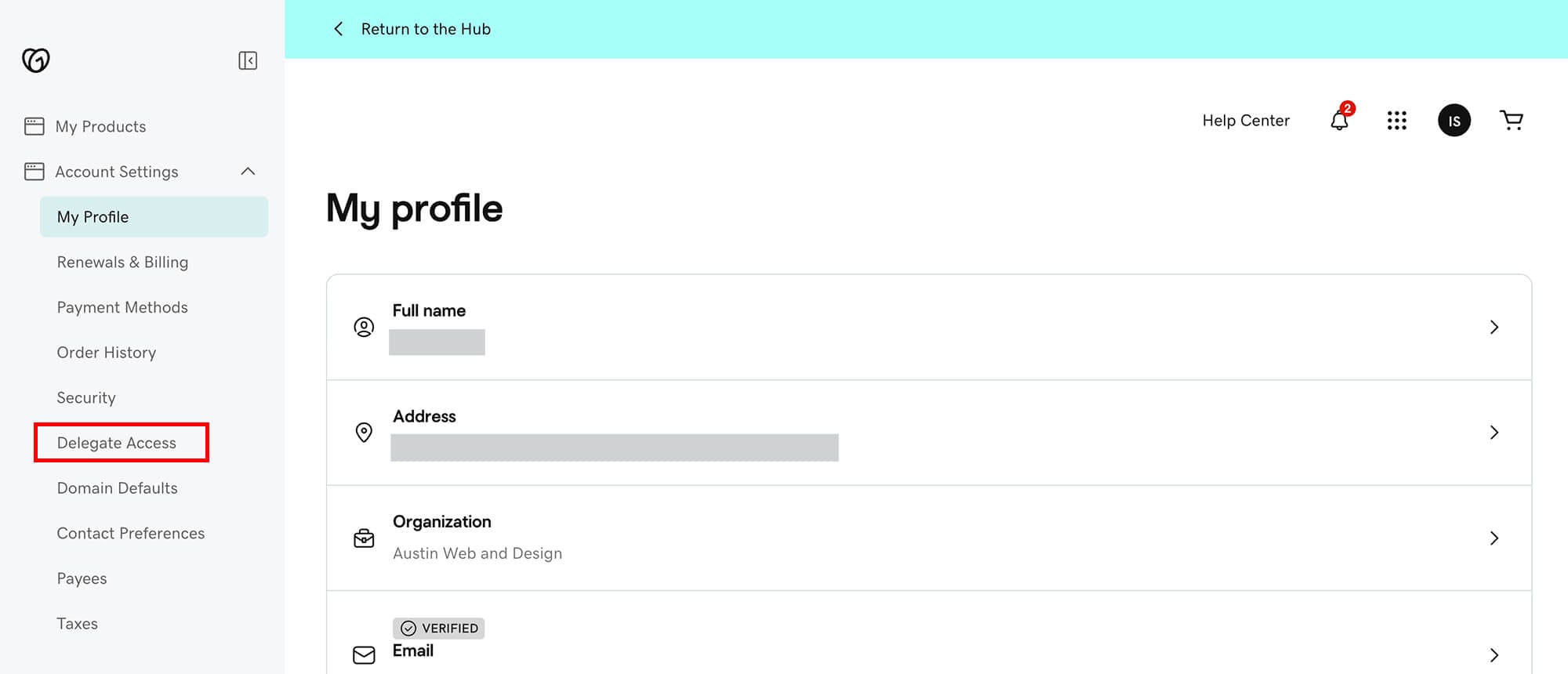
Sign in to your GoDaddy account. Open Account Settings, then select Delegate Access. In GoDaddy’s current account layout, Delegate Access appears in the Account Settings menu on the left side of the My Profile page.
2. Select Invite to Access
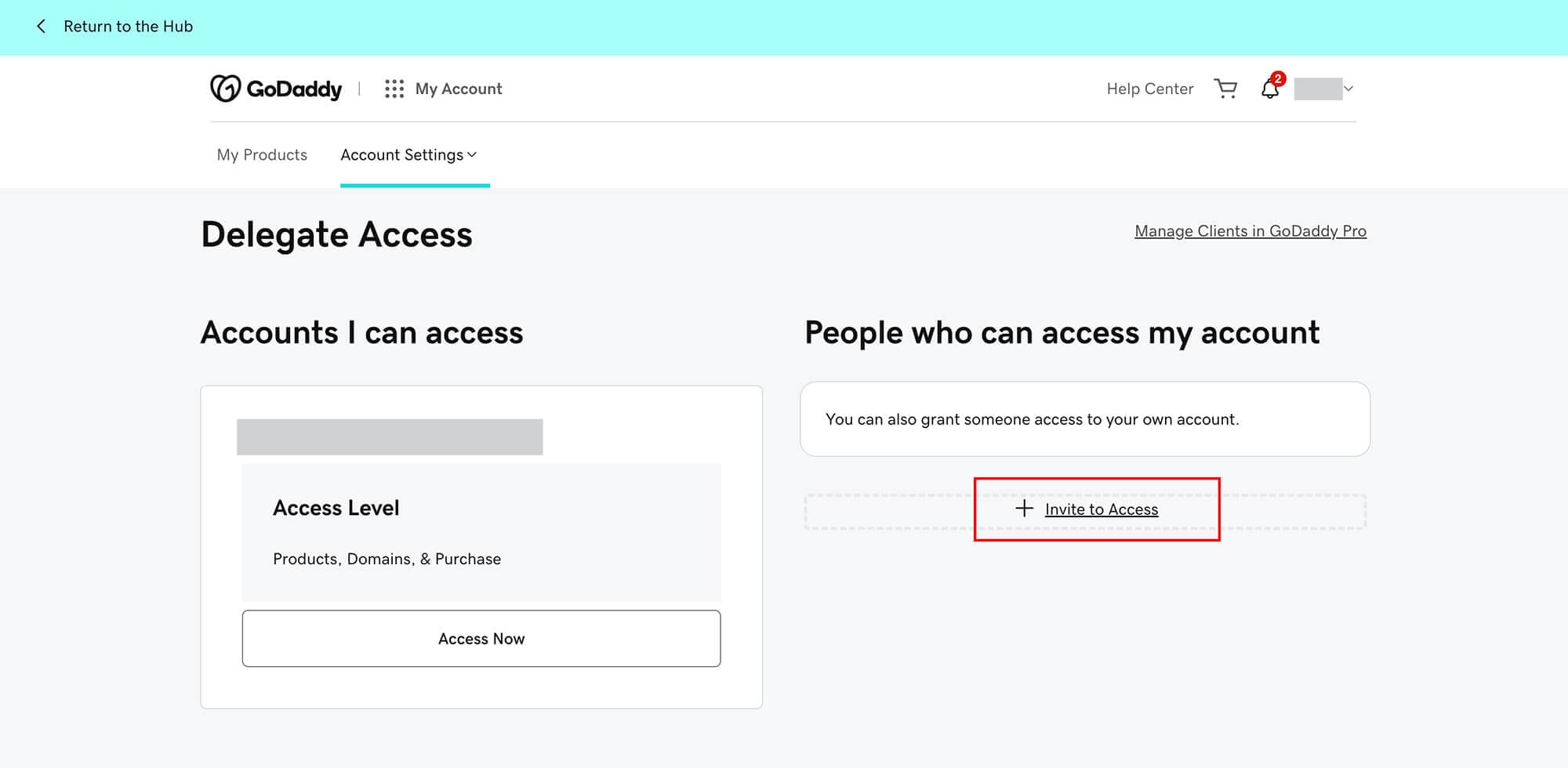
On the Delegate Access page, find the People who can access my account section. Select Invite to Access.
3. Enter the delegate’s information
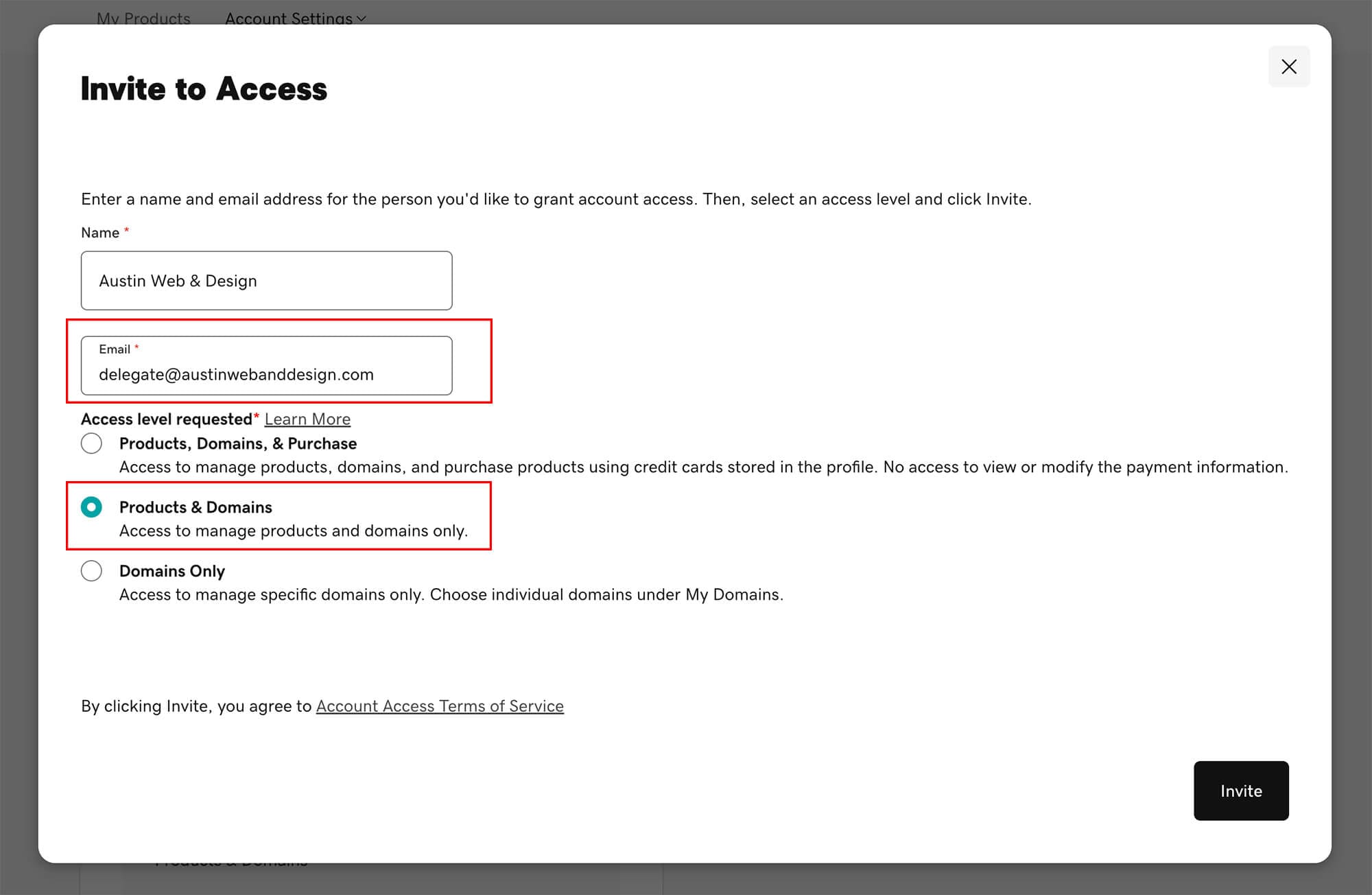
Enter the name and email address of the person or company you want to invite. If Austin Web and Design will be managing your GoDaddy products, enter:
- Name: Austin Web & Design
- Email: [email protected]
4. Choose the appropriate access level
Select the least-permissive level that still allows the delegate to complete the work you requested. GoDaddy may show the following choices:
- Products, Domains, & Purchase: Allows the delegate to manage products and domains and make purchases using a payment method already stored in the account.
- Products & Domains: Allows product and domain management without permission to make purchases. This is the appropriate choice for most website management and support work.
- Domains Only: Limits the delegate to permitted domain-management actions.
For Austin Web and Design, select Products & Domains unless we have specifically asked you to choose a different level.
5. Send the invitation
Select Invite. GoDaddy will email the delegate, who must sign in to their own GoDaddy account and confirm the invitation. If they do not already have a GoDaddy account, GoDaddy will prompt them to create one.
Pending invitations typically expire if they are not accepted within 48–72 hours. If the invitation expires, return to the Delegate Access page and send a new one.
Which GoDaddy access level should I choose?
For most work with a web designer or developer, Products & Domains provides the access needed without allowing purchases. Only choose Products, Domains, & Purchase when you intentionally want the delegate to buy or renew products using a stored payment method.
Domain permissions can also depend on GoDaddy’s domain-folder settings. If the delegate cannot access a specific domain after accepting the invitation, review the domain delegate folder permissions or ask your web professional what access is required.
How to change or remove GoDaddy delegate access
You remain in control of your account. Return to the Delegate Access page, locate the person under People who can access my account, and select Edit. From there, you can change the access level or remove the delegate. It is a good practice to review account access periodically and remove delegates who no longer need it.
Frequently Asked Questions
Need help with this or anything else?
If you’d rather not deal with ongoing updates, settings, or technical issues, our team can handle fixes, support, and long-term maintenance for you.
Related access guides
- How to Give Your Web Team Access Without Sharing Passwords
- How to Add Delegate Access to Network Solutions
- How to Grant Delegate Access in Hostinger
- How to Create and Share a Cloudflare Account
- How to Add Users to Google Search Console
GoDaddy’s interface and available permission options may change. For the latest platform-specific details, see GoDaddy’s delegate access instructions.