
WP Rocket has earned its reputation as one of the most effective WordPress performance plugins because it delivers significant speed improvements without requiring advanced server knowledge. Whether you’re managing a small business website, WooCommerce store, or enterprise-level WordPress installation, properly configuring WP Rocket can improve loading times, Core Web Vitals, and overall user experience.
In this guide, we’ll walk through the recommended WP Rocket settings, explain what each feature does, and share the best practices our agency follows when optimizing client websites.
Why Website Speed Matters
Website performance affects far more than visitor satisfaction. Faster websites generally experience higher engagement, improved search engine rankings, increased conversions, and lower bounce rates.
Google uses page experience and Core Web Vitals as ranking signals, making website speed an important part of modern SEO. While WP Rocket cannot fix every performance issue, it provides an excellent foundation for optimizing nearly any WordPress website.
Before Installing WP Rocket
Before enabling any caching plugin, it’s worth spending a few minutes preparing your website. This helps avoid conflicts and makes troubleshooting much easier.
- Create a complete website backup.
- Update WordPress, plugins, and themes.
- Remove any previous caching plugins.
- Verify whether your hosting provider already performs server-side caching.
- If available, test changes on a staging site before deploying to production.
Recommended WP Rocket Settings
Cache
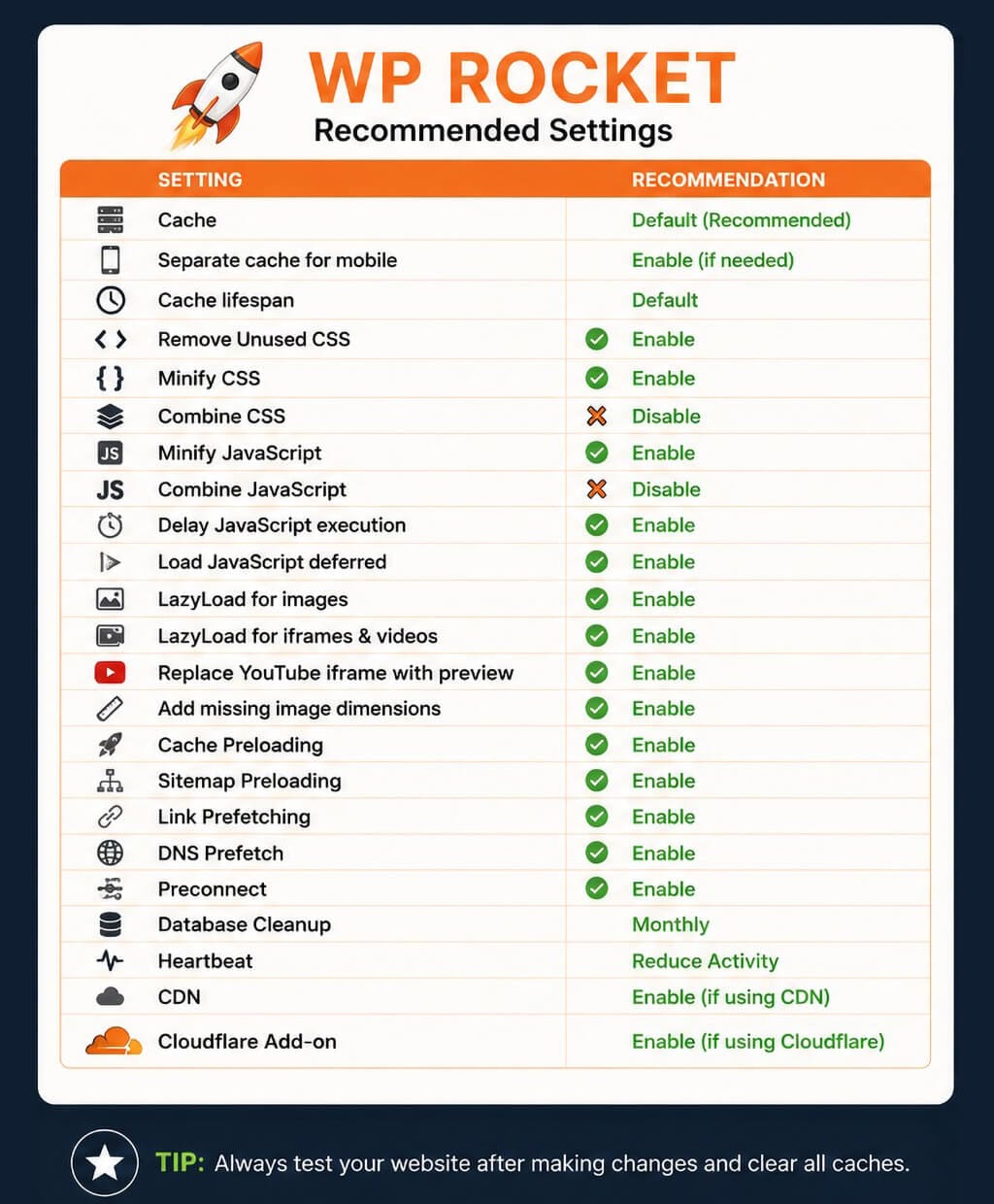
The default cache settings work well for most websites. WP Rocket automatically generates static versions of your pages, allowing visitors to receive content much faster than dynamically generating each request.
For most websites, the default caching options require little adjustment.
File Optimization
This section typically provides the greatest performance improvements but is also the area most likely to introduce compatibility issues.
CSS Optimization
Recommended settings include:
- Minify CSS
- Remove Unused CSS (preferred over combining CSS)
- Avoid combining CSS files on HTTP/2 and HTTP/3 servers
Removing unused CSS generally provides better performance improvements than older techniques such as combining multiple CSS files into one.
JavaScript Optimization
Recommended options include:
- Minify JavaScript
- Delay JavaScript Execution
- Load JavaScript Deferred
Delayed JavaScript often produces noticeable improvements in performance scores because scripts aren’t executed until they’re actually needed. However, certain plugins—such as sliders, booking systems, live chat, maps, or payment gateways—may require exclusions.
Media Optimization
Images are frequently the largest assets on a website. WP Rocket includes several tools that reduce unnecessary downloads while maintaining the visitor experience.
Recommended settings include:
- Enable Lazy Loading for images.
- Enable Lazy Loading for iframes and videos.
- Replace YouTube iframes with preview images.
- Add missing image dimensions.
These options help reduce initial page weight and improve Largest Contentful Paint (LCP).
Preloading
Preloading allows WP Rocket to build cached versions of your pages before visitors request them.
We generally recommend enabling:
- Cache Preloading
- Sitemap Preloading
- Link Prefetching
- DNS Prefetch for external resources
- Preconnect for critical third-party domains
This helps ensure visitors receive cached content immediately instead of waiting for the first uncached page generation.
Database Optimization
Over time, WordPress accumulates unnecessary data that can increase database size and reduce efficiency.
WP Rocket can safely clean many of these items, including:
- Post revisions
- Auto drafts
- Trashed posts
- Spam comments
- Expired transients
Scheduling a monthly cleanup is usually sufficient for most business websites.
Heartbeat Control
The WordPress Heartbeat API performs background communication between the browser and server. While useful, it can create unnecessary server activity on busy websites.
Reducing the Heartbeat frequency—rather than disabling it completely—usually provides the best balance between functionality and performance.
CDN Integration
WP Rocket works well with most major Content Delivery Networks (CDNs), including Cloudflare, Bunny CDN, and other providers.
If you’re using Cloudflare, WP Rocket’s integration simplifies cache clearing and helps keep both systems synchronized.
Common Mistakes to Avoid
- Using multiple caching plugins simultaneously.
- Enabling every optimization option without testing.
- Ignoring plugin conflicts after updates.
- Forgetting to purge cache after making website changes.
- Combining optimization plugins that duplicate functionality.
Testing Your Changes
Every website behaves differently, so it’s important to test after each optimization change.
We recommend evaluating performance using:
Focus on real-world improvements rather than chasing a perfect performance score.
Rather have this handled for you?
If you’d rather not deal with performance settings, plugin conflicts, or technical troubleshooting, our team can help optimize your WordPress website safely and efficiently.
- WP Rocket setup and configuration
- Performance troubleshooting and plugin conflicts
- Clean documentation and handoff
Our WP Rocket Optimization Workflow
- Create a backup.
- Install and activate WP Rocket.
- Configure cache settings.
- Optimize CSS.
- Optimize JavaScript.
- Enable media optimizations.
- Configure preload options.
- Optimize the database.
- Test website functionality.
- Measure Core Web Vitals.
- Fine-tune settings as needed.
When WP Rocket Is the Right Choice
WP Rocket works exceptionally well on hosting providers that use Apache or Nginx web servers, including platforms such as WP Engine, Flywheel, Cloudways, and many VPS or dedicated server environments.
If your hosting provider runs LiteSpeed Web Server, you’ll often achieve even better results using LiteSpeed Cache because it integrates directly with the web server. Learn more in our LiteSpeed Cache Settings Guide or read our complete WP Rocket vs. LiteSpeed Cache comparison to determine which plugin is right for your hosting environment.
Save 20% on WP Rocket
If you’ve decided that WP Rocket is the right caching plugin for your website, you can save 20% on any WP Rocket license using our referral link. You’ll receive the same plugin, updates, and support directly from WP Rocket, while also helping support the free WordPress tutorials and resources we publish on Austin Web & Design.
Final Thoughts
WP Rocket remains one of the easiest ways to improve WordPress performance without requiring extensive technical knowledge. While every website requires slightly different tuning, following these best practices will give most WordPress websites a strong foundation for faster loading times and improved Core Web Vitals.
Remember that caching is only one part of website optimization. High-quality hosting, properly optimized images, efficient themes, and well-written plugins all contribute to a fast, reliable WordPress website.
Need help optimizing your WordPress website? Contact our team or explore our hourly WordPress support services.