
LiteSpeed Cache is one of the most powerful WordPress performance plugins available, especially when your website is hosted on a server running LiteSpeed Web Server. Unlike many traditional caching plugins, LiteSpeed Cache can communicate directly with the server-level cache, which can lead to faster page delivery and better overall performance.
In this guide, we’ll walk through recommended LiteSpeed Cache settings, explain what each major feature does, and share the best practices our agency follows when optimizing WordPress websites hosted on LiteSpeed-powered servers.
Why Website Speed Matters
Website performance affects more than how fast a page appears to load. Faster websites can improve user experience, reduce bounce rates, increase conversions, and support stronger SEO performance.
Google uses page experience and Core Web Vitals as ranking signals, making website speed an important part of modern WordPress optimization. LiteSpeed Cache provides a strong foundation for improving performance, especially when paired with quality hosting, optimized images, and a lightweight theme.
Before Installing LiteSpeed Cache
Before enabling LiteSpeed Cache, it’s worth confirming that your website environment is a good fit. The plugin can be used on many WordPress sites, but its biggest performance advantage comes when your hosting uses LiteSpeed Web Server or OpenLiteSpeed.
- Create a complete website backup.
- Update WordPress, plugins, and themes.
- Remove any previous caching plugins.
- Confirm whether your hosting provider uses LiteSpeed Web Server.
- If available, test changes on a staging site before deploying to production.
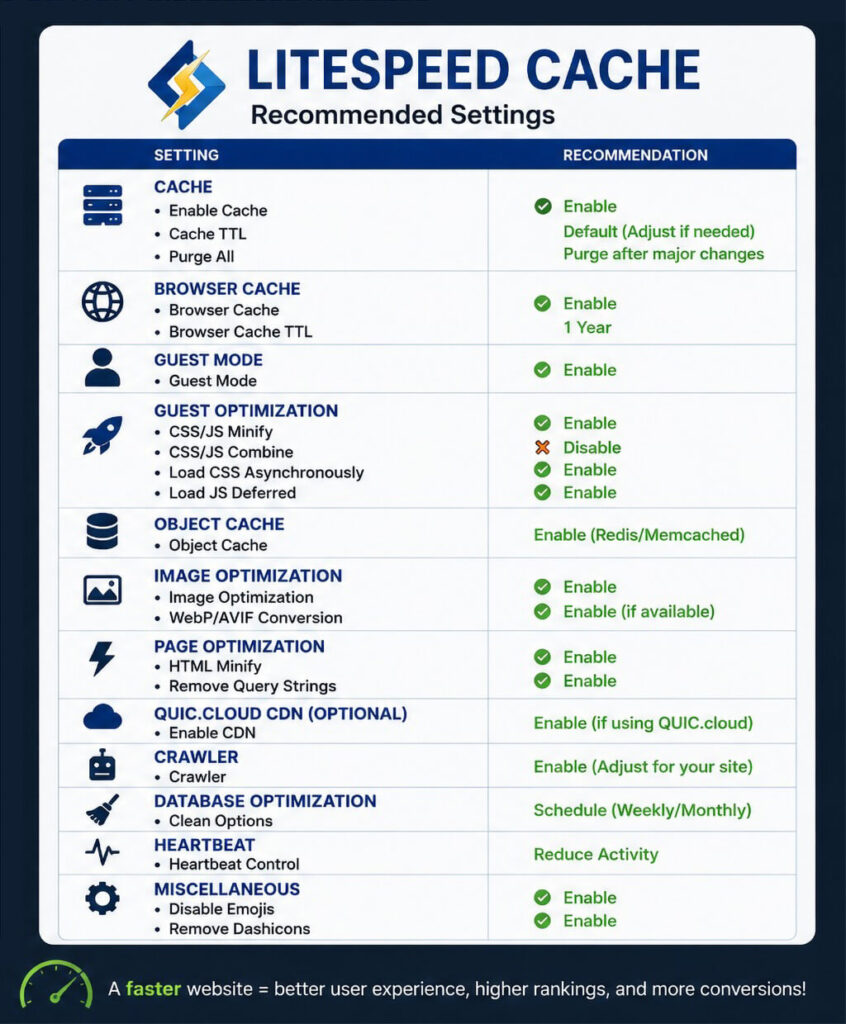
Recommended LiteSpeed Cache Settings
Cache
The main cache settings are the foundation of LiteSpeed Cache. When enabled on compatible hosting, LiteSpeed Cache stores static versions of your pages and serves them more efficiently to visitors.
For most business websites, we recommend enabling public cache and leaving most default cache behavior in place unless the site has advanced functionality such as memberships, ecommerce, logged-in dashboards, or personalized content.
- Enable Cache
- Enable Browser Cache
- Do not cache logged-in users unless you understand the site’s user roles and content behavior
- Exclude cart, checkout, account, and other dynamic pages when needed
Page Optimization
The Page Optimization section typically provides some of the biggest front-end performance improvements, but it is also the area most likely to create display or functionality issues if settings are enabled too aggressively.
CSS Optimization
Recommended settings include:
- Minify CSS
- Load CSS Asynchronously when properly tested
- Use Unique CSS or Critical CSS when supported and tested
- Avoid combining CSS files on most modern HTTP/2 and HTTP/3 servers
CSS optimization should be tested carefully because themes, page builders, sliders, forms, and third-party plugins may rely on specific stylesheet loading behavior.
JavaScript Optimization
Recommended options include:
- Minify JavaScript
- Load JavaScript Deferred
- Delay JavaScript when tested carefully
- Exclude scripts that are required for above-the-fold functionality
JavaScript optimization can improve performance scores, but it can also affect menus, sliders, maps, forms, popups, ecommerce features, and tracking scripts. Test one setting at a time and review the live site after each change.
Image Optimization
Images are often the largest assets on a WordPress website. LiteSpeed Cache includes image optimization features through QUIC.cloud, allowing site owners to compress images and generate modern image formats such as WebP.
Recommended settings include:
- Enable image optimization through QUIC.cloud.
- Generate WebP versions of images.
- Enable Lazy Loading for images.
- Enable Lazy Loading for iframes when appropriate.
- Review image quality before applying optimization across the full media library.
Image optimization can improve page weight, Largest Contentful Paint, and mobile performance, but it should be configured carefully on image-heavy websites or sites with photography, product images, or portfolio work.
Object Cache
Object caching can improve performance by storing repeated database queries in memory. This is especially helpful for WooCommerce stores, membership websites, directories, learning management systems, and other database-heavy WordPress sites.
LiteSpeed Cache supports object cache integrations such as Redis or Memcached when they are available on your hosting account.
- Use Redis or Memcached only if your hosting provider supports it.
- Test the site carefully after enabling object cache.
- Disable object cache if you notice admin issues, stale content, cart problems, or plugin conflicts.
Database Optimization
Over time, WordPress can accumulate unnecessary database data from revisions, drafts, spam comments, transients, and other temporary records.
LiteSpeed Cache can help clean many common database items, including:
- Post revisions
- Auto drafts
- Trashed posts
- Spam comments
- Expired transients
For most business websites, a monthly database cleanup is usually enough. Always create a backup before running database optimization tools.
Crawler Settings
The LiteSpeed Cache crawler can visit pages on your site and warm the cache so visitors are more likely to receive already-cached pages. This can be helpful, but it can also increase server activity.
For smaller business websites, the crawler may not be necessary. For larger sites, blogs, directories, or ecommerce stores, it can be useful when configured responsibly and supported by the hosting environment.
- Use the crawler only if your hosting plan can handle the additional activity.
- Avoid aggressive crawler settings on shared hosting.
- Monitor server load after enabling crawler features.
CDN and QUIC.cloud Integration
LiteSpeed Cache integrates with QUIC.cloud, which provides services such as image optimization, page optimization, and CDN functionality. You can also use LiteSpeed Cache alongside other CDN providers, including Cloudflare.
QUIC.cloud is especially useful when you want deeper integration with LiteSpeed Cache features. Cloudflare may still be a good option for DNS, security, and edge caching depending on your website setup.
Common Mistakes to Avoid
- Using LiteSpeed Cache with another full-page caching plugin.
- Enabling every optimization option without testing.
- Combining CSS and JavaScript unnecessarily.
- Forgetting to purge cache after making website changes.
- Enabling object cache without confirming hosting support.
- Running duplicate image optimization or lazy loading plugins.
Testing Your Changes
Every website behaves differently, so it’s important to test after each optimization change.
We recommend evaluating performance using:
Focus on real-world improvements rather than chasing a perfect performance score.
Rather have this handled for you?
If you’d rather not deal with performance settings, plugin conflicts, or technical troubleshooting, our team can help optimize your WordPress website safely and efficiently.
- WP Rocket setup and configuration
- Performance troubleshooting and plugin conflicts
- Clean documentation and handoff
Our LiteSpeed Cache Optimization Workflow
- Create a backup.
- Install and activate LiteSpeed Cache.
- Confirm LiteSpeed server compatibility.
- Configure cache settings.
- Optimize CSS carefully.
- Optimize JavaScript carefully.
- Enable image optimization and WebP when appropriate.
- Configure object cache if supported.
- Review CDN or QUIC.cloud options.
- Test website functionality.
- Measure Core Web Vitals.
- Fine-tune settings as needed.
When LiteSpeed Cache Is the Right Choice
LiteSpeed Cache is usually the right choice when your website is hosted on a LiteSpeed-powered server. This includes many hosting environments that use LiteSpeed Web Server or OpenLiteSpeed.
If your website is hosted on Apache or Nginx instead of LiteSpeed Web Server, WP Rocket is often the better choice. Read our WP Rocket Settings Guide or compare the two plugins in our WP Rocket vs. LiteSpeed Cache Comparison.
Final Thoughts
LiteSpeed Cache is a powerful WordPress optimization plugin, especially for websites hosted on LiteSpeed servers. It includes caching, file optimization, image optimization, database cleanup, object cache support, CDN integrations, and advanced performance tools in one plugin.
Because LiteSpeed Cache includes so many options, the best approach is to enable settings carefully, test thoroughly, and avoid turning on every optimization feature at once. With the right configuration, LiteSpeed Cache can provide an excellent foundation for faster loading times and improved Core Web Vitals.
Need help optimizing your WordPress website? Contact our team or explore our hourly WordPress support services.